Contents Page, Previous Chapter, Next Cha
pter
As a safeguard against inadvertent deletions, two steps are required to delete a message in Eudora. For any current message, choose Delete from the Message menu. This does not
actually delete the message, but transfers it to the Trash mailbox. To delete messages from the Trash mailbox, select Empty Trash from the Special menu. Quitting the program also empties the contents of the Trash mailbox when the Empty Trash on Quit option in the Switches... dialog is turned on. Finally, if you want to delete just a few messages from the Trash mailbox, highlight them and select Delete from the Message menu or hit the Trash Button on the
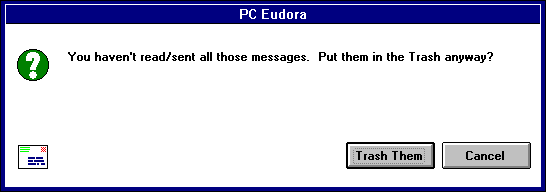
mailbox. Deleting a message that's already in the Trash removes it from Eudora completely.Also, unless the Easy Delete option in the Switches... dialog is turned on, any attempt to delete a message that you have never opened (or a Queued messag
e that hasn't been sent) results in Eudora asking for confirmation before proceeding with the deletion.
Even after a message has been deleted with the
two-step process described above, the storage space which that message originally required is still taken. Normally, Eudora recovers this space automatically when it becomes troublesome. However, if disk space is very tight, you can force this to happe
n earlier than usual. In order to reclaim the storage space, select the Compact Mailboxes from the Special menu.Mailboxes can also be compacted individually using Mailbox Size button in the mailbox icon bar. To force Eudora to re
cover wasted space for a current mailbox, click on this button.
Note: Eudora compacts mailboxes automatically when you close them under either of two conditions. Mailboxes are compacted if the amount of wasted space in the mailbox is greater than th
e amount of space the message in the mailbox use, or if the amount of space wasted in the mailbox is greater than 5% of the free space on the volume that contains it.
Contents Page, Previous Cha
pter, Next Chapter