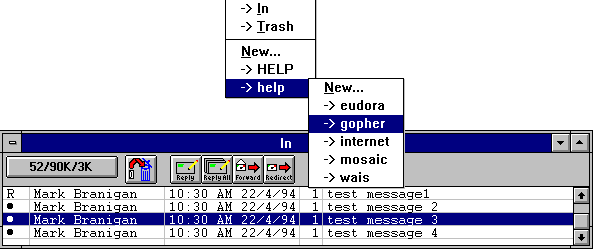
If you hold down the [SHIFT] key while transferring a message, the message is copied into the new mailbox instead of transf erred. This is useful if you want to file a message in more than one mailbox.
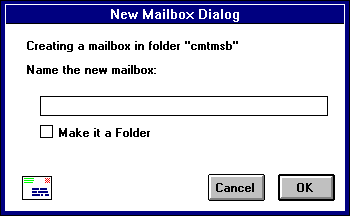
Type in the new mailbox name and click OK. The mailbox is created and added to the Mailbox and Transfer menus. T he current message is also transferred into the new mailbox. However, if you check the Don't transfer, just create mailbox option, the mailbox is created but the message isn't transferred into it.
You can also create mailboxes using the Mailboxe s dialog under the Window menu (see the "Mailbox Window" section) or using the Mailbox menu (see "Creating a New Mailbox" section). The mailboxes Window is most useful if you want to create several mailboxes at one time.
To create a new mail folder during message transfer, select New... from the Transfer menu. The new mailbox dialog is displayed. Type the name of the new mail folder and check the Make it a Folder option. Click OK to create the folder.

Your message can't be transferred, however, since messages must be in mailboxes and you have not yet created a mailbox. Therefore, the new mailbox dialog is disp layed again. Now, type the name of the mailbox you want to create within the newly-created folder and click OK to complete the transfer.
The new folder name is displayed at the bottom of the list of mailbox names under the Mailbox and Transfer menus. There is an arrow next to the name designating it as a folder and not as a mailbox.