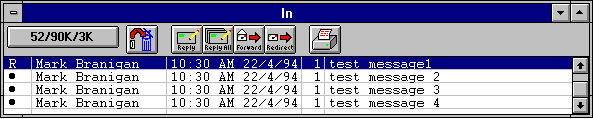
 Mailbox Size Button
Eudora occasionally recovers this wasted space on its own. To force Eudora to recover this wasted space for the current mailbox, click on this button. To force Eudora to recover this space for all mailboxes, select Compact Mailboxes from the Special menu.
 Trash Button
Tip: Multiple messages can also be selected simultaneously, holding down [SHIFT] or [CTRL] keys and clicking on different messages in the Message Summaries. Windows standard rules for [SHIFT] and [CTRL] keys are followed.
 Reply Button
 Reply All Button
 Forward Button
 Redirect Button
 Print Button
There are several ways to select more than one summary. You can select a summary and drag through the ones you want to select. You can select one summary, hold down the [SHIFT] key, and select another summary to select both summaries and all the summaries between them. Finally you can hold down the [CTRL] key and select individual summaries. This allows you to make "disjoint" selections.
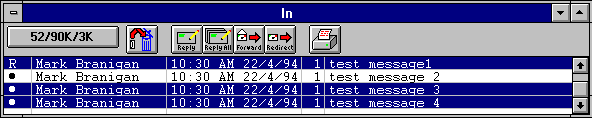
The Status/Priority< /B> column displays two items. The first is the message status, which is one of the following:
	"o"	 The message has not been read (all mailboxes except
		 Out), or is queueable but has not been queued (Out
		 mailbox only).
	"blank"	 The message has been read (all mailboxes except
		 Out), or is not yet able to be queued because it has
		 no recipients (Out mailbox only).
	R	 Reply has been chosen for the message.
	F	 Forward has been chosen for the message.
	D	 Redirect has been chosen for the message.
	S	 The message has been sent (outgoing messages only).
	-	 The message was transferred from the Out mailbox
		 before being sent.
The message priority is displayed as follows:
 Highest priority
 High priority
 Low priority<
/H4>
Low priority<
/H4> Lowest priority
The Sender/Recipient column shows the sender of the message (for incoming messages) or the recipient or in tended recipient (for outgoing messages).
The Date/Time column displays the date and time the message was sent, or, for timed messages, the date and time the message is scheduled to be sent.
Note: The date and time are formatted according to the format specified in the Date/Time applet in the Windows Control Panel.
The Size column displays the size of the message, in K (K = 1024 bytes).
The Subject column displays the subject of the message. This information was typed into the message header by the sender.