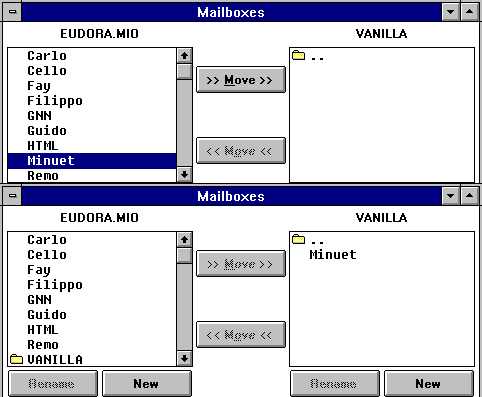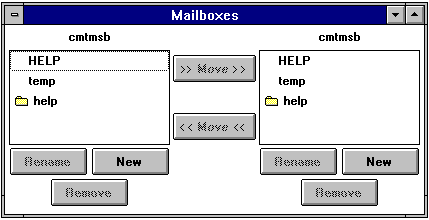
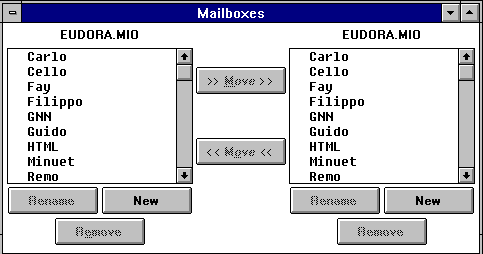
To accomplish any of these tasks, choose Mailboxes from the Window menu. The Mailboxes window is displayed.
The window has two identical listings with scroll bars, each entitled Eudora (or whatever the name of the directory holding your mail - see the "Mail Storage" section). These list the names of the mailboxes and folders you have created (folders are identified by a fold er icon to the left of the name). This list is similar to that displayed under the Mailbox and Transfer menus, except that the In, Out, and Trash mailboxes aren't included. Underneath each of the lists are buttons labeled Rename, New, and Remove. Between the lists are two additional buttons labeled Move, each pointing from one list to the other.
Double-clicking on any of the mailboxes in a list opens that mailbox window on the screen. Individual messages can be selected, opened, and otherwise manipulated from there.
Double-clicking on a folder (denoted with an icon of folder to the left of its name) changes the current title of the list from Eudora to that of the chosen folder. The contents of the list also change to the names of mailboxes and subfolders contained in the chosen folder.
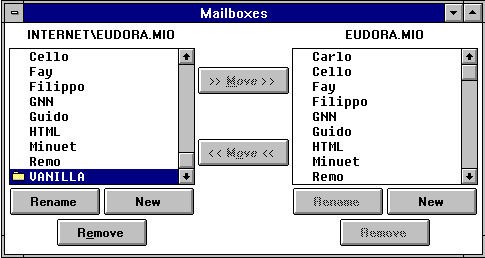
To move back out of the subfolder to the folder that contains it, double-click on the entry at the top of the list consisting of two periods (..)
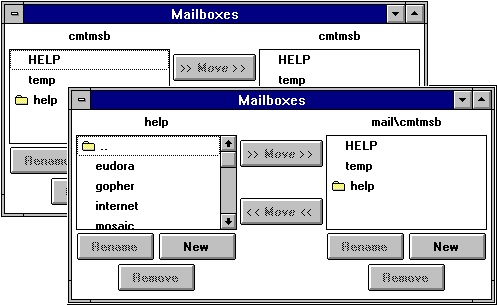
Note: You can perform this function usi ng either of the two lists in the Mailboxes window. It is not necessary to locate a mailbox or folder in both lists before deleting it.
Once the desired mailbox/folder is found, click on it once to select it. Then, click on the Remove butto n that is located below the list.
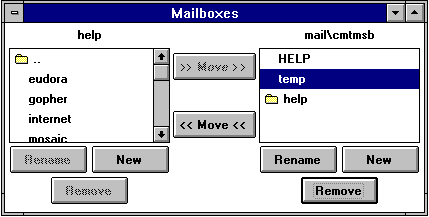
A dialog is then displayed asking you to confirm the mailbox removal. Click on the Remove It button to remove the mailbox.
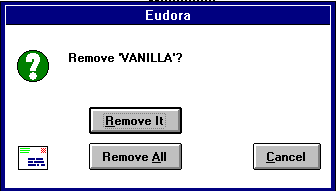
If you press the [CTRL] key whil e selecting from a list of mailboxes/folders, you can select more than one mailbox or folder simultaneously. When you click on the Remove button, the mailbox removal dialog is displayed to verify the removal. The dialog contains the name of the f irst mailbox you have selected. If you click on Remove It, Eudora removes that mailbox, and then displays another dialog for the next mailbox. If you click on Remove All, all of the selected items are removed without any further prompts.
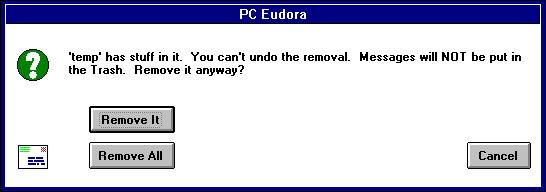
If you choose to remove a mailbox in which messages are still stored, or a folder in which other mailboxes or folders are stored, all messages/mailboxes/folders contained within the selected mailbox are also removed.
Note: You can perform this function using either of the two lists in the Mailboxes window. It is not necessary to locate a mailbox or folder in both lists before renaming it.
Once the desired mailbox/folder is found, click on it once to select it. Then, click on the Rename button that is located below the list.
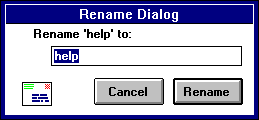
A dialog is then displayed requesting the new name. Type in the new name and click on Rename to rename the mailbox/folder.
With the Mailboxes Window open, double-click on the folder in which the new mailbox /folder is to be created to open it. Its name is displayed above one of the lists, and its contents are displayed therein.
Note: You can perform this function using either of the two lists in the Mailboxes window. It is not necessary to locate a fo lder in both lists before creating a new mailbox or folder inside it.
Click on the New button that is located below the list.
A dialog is displayed requesting the name of the new mailbox.
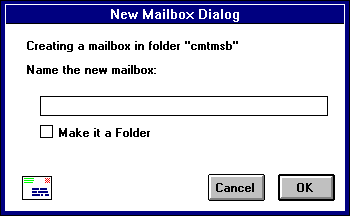
Type in the new name, check the Make it a Folder option if you want to do so, and click OK. The new mailbox/folder is displayed in the designated folder's listing. The newly created mailbox/folder is also added to the Mailbox and Trans fer menus.
To begin, locate in one of the l ists the folder or mailbox you want to move. In the other list, find and open (by double-clicking on the name) the destination folder so that its name is displayed above the list, and its contents are displayed. Then, select the mailbox you want to move . Click on the Move button that points from the list containing the item you want to move to the list displaying the destination folder. The chosen mailbox/folder is moved to its new location.