Contents Page, Previous ChapterNext Chapt
er
An outgoing message is a message you send to someone else.To create an outgoing message, select New Message from the Message menu. A new composition window entit
led No Recipient, No Subject is displayed with the blinking insertion point situated at the start of the To: field. The composition window consists of the Title bar, the Icon bar, the Message header, and the Message
body.
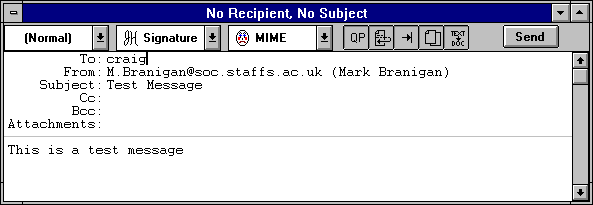
The title bar provides information about incoming and outgoing messages, including the name of the sender (if it is an incoming message) or addressee (if it is an outgoing mess
age), the time and date the message was delivered or sent, and a brief message summary. New messages are labeled No Recipient, No Subject until they are sent or queued. Queued message do not have a time stamp until they are sent.The icon bar consists of a series of objects that are displayed just under the title bar. It allows you to control your message's priority, override some of your preference settings for that message only, and send or queue the mess
age. There are three combo boxes, and six buttons. Each of the first five buttons may be turned on or off for the current message by clicking on it. If there is a shadow around the button (indicating that the button is raised) the button is turned o
ff. The popup menus, and the buttons are described below.
Note: The default settings for the icon bar are determined in the Switches... dialog (see the "Switches... dialog" section).
The leftmost object in the icon bar is the Priority Combo Box. For most messages, the priority is (Normal)If you want to indicate that your message is of a higher or lower priority than a normal message
, use this combo box to make the desired selection. Priorities are discussed in the "Message Priorities" section.
The signature combo box allows to you to automatically attach yo
ur signature file to the end of each message you send. Signatures are discussed in the "Creating a Signature" section.The Attachment Type combo box allows you to select what fo
rmat documents that you attach to outgoing messages are encoded in: Multipurpose Internet Mail Extensions (MIME) or BinHex. MIME is best for recipients with MIME (for more informations on MIME see the "Appendices"
section). BinHex is most compatible with old Macintosh mailers and previous versions of Eudora.If this button is on, quoted-printable encoding may be used when sending mes
sages that contain long lines of text or special characters. When on, it is used for all attachments. It is raccomended that this button always be on.If this button is on, a carriage retu
rn is not required at the end of each line you type in an outgoing message; Eudora automatically wraps text to the next line, with line breaks at roughly 76 characters per line.If this b
utton is on, hitting the [TAB] key within the message body results in Eudora inserting enough spaces to move the insertion point to the next tab stop (as specified in the Configuration dialog). This mimics the way tabs work on many terminals. If this but
ton is not on, hitting the [TAB] key returns the cursor to the To: field of the message header.If this button is on, a copy of each sent message is kept in the Out mailbox (their s
ummaries are marked with an S in the far left column of the Out mailbox window, indicating that they have been sent). These messages are saved until they are deleted or transferred to a different folder.If this button is on text files attached to messages are sent as separate documents. If the button is off, text files are incorporated into the messages as part of the message body. The default for this button is set by "A
lways as Attachment" option in the Switches... dialog (see "Switches dialog" section).Tip: If you want to attach a document encoded with a non-MIME or BinHex method (for example UUENCODE method), turn off this button and attach the document e
ncoded separately with another encoding program. In this way the uuencoded document became part of the message body. The recipient can save message as a file and decode it with an external program. it
If the Immediate Send option in the Switches... dialog is turned on, the rightmost button in the icon bar is labeled Send. Clicking the Send button immediately sends the message. Otherwise, this button is labeled
Queue and has the same function as the Queue for Delivery command under the Message menu (upon clicking this button, the message window closes and the message is held in the Out mailbox, marked ready for delivery).Outgoing message headers consist of six fields: To:, From:, Subject:, Cc:, Bcc:, and Attachments:. Each field holds a different piece of information. The To:, Subject:,
Cc:, and Bcc: fields can be directly edited. To move the insertion point from field to field, press the [TAB] key or click in the desired field with the mouse. When entering information into the fields, you can use the standard Windows text-e
diting tools provided under the Edit menu. Here is a brief description of the intended contents of each field.The intended recipient's E-mail address, or a nickname you have defined (see the "Creating and Using Nick
names" section). Multiple addresses are allowed, but must be separated by commas.The sender's E-mail address. This is usually your POP account plus your real name. You can use a return address other than your PO
P account by entering the desired address in the Return Address field of the Configuration... dialog (see the "Configuration... Dialog" section).Brief text indicating the contents of the message. This field can
be left blank (though it is a breach of E-mail etiquette to do so).E-mail address or nickname of person to whom a copy of the message is to be sent (carbon copy). Multiple addresses are allowed but must be separate
d by commas. This field may be left blank."Blind" carbon copy. Like addresses listed in the Cc: field, addresses listed here receive copies of the message. Unlike addresses listed in the Cc: field, addresses list
ed here do not appear in the message header of the recipients. This is useful when you want to send a copy of a message to someone without everyone else knowing you did so. Multiple addresses are allowed but must be separated by commas. This field can
be left blank.List of documents being sent along with the message. Specify these through the Attach Document command under the Message menu (see the "Attachments" section). To delete an attachment from a m
essage, select it by single clicking on the attachment title and press [DEL] key. You cannot enter information directly into this field. This field can be left blank.After filling in the fields, move the inse
rtion point to the space below the message header. Type the body of the message here. Feel free to use the standard Windows text-editing tools provided under the Edit menu (see the "Summary of Menu Commands" section).If the Word Wrap button on
the icon bar is turned on, you don't need to press [ENTER] key at the end of each line of text. The text wraps to the next line automatically. If this option is not set, be sure to type a [ENTER] key at the end of each line or your message may not be l
egible on the recipient's computer. To use tabs in the message body, turn on the Tabs in Body button in the icon bar.
Contents Page, Previous ChapterNext Chapter
<
/body>
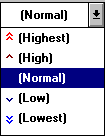 Priority Combo Box
 Signature Combo Box
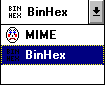 Attachment Combo Box
 Quoted-Printable Encoding
 Word Wrap
 Tabs in Body
 Keep Copy
  Text as Document
 Send or Queue