Contents Page, Previous Chapter, Next Ch
apter
You may tailor many aspects of Eudora to your own needs and preferences. Some of these are set with the Configuration... dialog described in the previous section. Others are set with the
Switches... dialog. If the setting can be either on or off, it's in the Switches... dialog; if a choice beyond on or off is required, it's in the Configuration... dialog. The one exception to this is the Encode With option in the Switch dialog.
To display the Switches... dialog, select Switches... from the Special menu.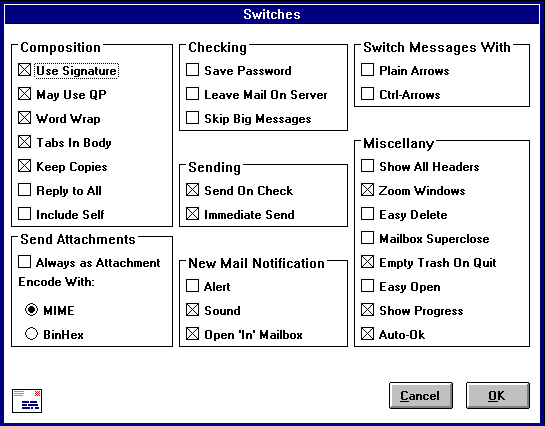
The Switches... dialog is divided into seven sections of options, with a descriptive heading above each group. A check in the box next
to the option indicates that the option is on. Each of the options is described below. The default settings are listed in brackets after the name of each option.
Many of the Composition options can be
turned on and off for individual messages using the icon bar displayed at the top of the message composition window. However, setting them here establishes these settings as the icon bar defaults for all new composition windows.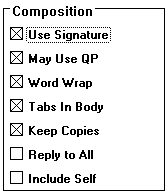
If Use Signature is on, Eudora automatically attaches your signature file (if you have one) to the end of outgoing messages.If May use QP is on, Eudo
ra uses quoted-printable encoding when necessary, such as when messages that contain long lines of text or special characters are sent. If this option is off, quoted-printable encoding is not used.If Word
Wrap is on, a Carriage Return is not required at the end of each line of type in an outgoing message. Eudora automatically wraps text to the next line, with line breaks at roughly 76 characters per line. This makes your mail more legible to reci
pients using line-oriented mail systems. It is strongly recommended that you turn this option on.If Tabs in Body is on, hitting the [TAB] key within the message body results in Eudora inserting enough
spaces to move the insertion point to the next tab stop (as set in the Configuration... dialog). This mimics the way tabs work on many terminals. If this option is off, hitting the [TAB] move the cursor to the To: field of the message header.<
H4>e. Keep Copies [off] If Keep Copies is on, a copy of each sent message is kept in the Out mailbox (their summaries are marked with an S in the Status/Priority column of the Out mailbox window). If this option is
off, Eudora moves outgoing messages to the Trash mailbox after they are sent.
If Reply to All is on, selecting Reply from the Message menu creates a message addressed not only to the sender of the orig
inal message, but also to all of its recipients. If the option is off, Reply addresses the new message only to the sender.You can use the [SHIFT] key to reverse this setting for any given reply. That is, if this option is off, holding down the [SHIFT
] key while choosing Reply replies to all, and vice-versa.
Note: This option setting also affects the Make Nickname command (see the "Make Nickname... Command" section).
If Include Self is on,
when you do a reply all (as described above) your address is left in the address list of the new message and you receive a copy of your own reply. If this option is off, your address is removed from the reply message.To determine who you are, Eudora u
ses the contents of the POP account and Return Address fields from the Configuration... dialog. If you have additional addresses, you can create a "me" nickname using the Nicknames window. List all of the addresses and aliases for yourself in the
Address(es) field for the me nickname. This gives Eudora a more complete listing of who you are. It also insures that when you reply to messages sent to you at one address, other then what is listed in the Configuration... dialog, the Include se
lf option works correctly.
Note: This option setting also affects the Make Nickname command (see the "Make Nickname... Command" section).
These options define the way attachments are sent.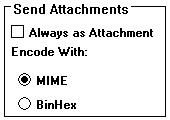
If Always as Attachment is on, text files attached to messages are sent as separate documents and encoded using the selected Encoded With: format. If the optio
n is off, text files are incorporated into the message as part of the message body, which is in plain text format. If this option is off and the attachment is not a text file, it is still sent as a separate document and encoded using the selected format.
Tip: If this option is off, you can attach to Eudora mail documents encoded with methods different from BinHex or MIME, i.e. UUENCODED, for example. In fact they are incorporated into the message as part of the message body.
This option allows for the selection of what format documents you attach to outgoing messages are encoded in: MIME or Bin Hex. MIME is best for recipients with MIME and BinHex is most compatib
le with old Macintosh mailers and previous versions of Eudora.These options determine the way Eudora checks for and receives mail.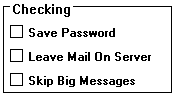
If Save Password is on, you never have to enter your password to check your mail (even if you quit Eudora and restart it) because your password is stored on your Pc. Only use this option if your PC is in a secure place.Eudora normally transfers your incoming messages from your account on the POP server to your PC, and deletes them from the POP server. If Leave Mail on Server is on, Eudora transfers incoming messages to your PC and also
keeps copies on the POP server (see the "Leave Mail on Server Option" section).If Skip Big Messages is on, Eudora does not download the entire texts of very large messages from the POP server, but
only downloads the first few lines. This can be useful on slow connections (see the "Skip Big Messages Option" section).These options determine the way Eudora sends mail.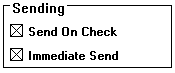
<
A NAME="SEC134">a. Send On Check [on]
If Send on Check is on, Eudora automatically sends any messages that are queued in the Out mailbox whenever it checks the POP Server for new mail.If Immed
iate Send is on, the rightmost button in the icon bar of the message composition window is labeled Send. Clicking on this button immediately sends the message to the POP server. If this option is off, the button is labeled Queue and clicki
ng on it places the message in the Out mailbox marked ready for delivery (Q).These options determine what Eudora does when new mail arrives.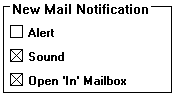
If Alert is on, Eudora uses an alert to notify you when new mail arrives.If Sound is on, Eudora makes a noise when new mail arrives.If Open "In" Mailbox is on, Eudora automatically opens the "In" mailbox when new mail arrives. It also scrolls to the end of the mailbox and selects the First Unread Message of the Last Unread Batch of message
s (FUMLUB). If this option is off, Eudora doesn't open the "In" mailbox when new messages arrive. It does, however, place the messages in the mailbox in the same order.These options all
ow you to use arrow keys to toggle through messages.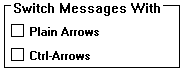
If Plain Arrows is on and there is a message window open on the screen, the arrow keys can be used to close the current me
ssage and open the next or previous message in the mailbox. The up or left arrow key opens the previous message; the down or right arrow key opens the next message. If this option is off, the arrow keys can be used to move the insertion point in message
s.Note: Even if Plain Arrows is on, the arrow keys do not switch messages if there is a message composition window topmost on the screen.
If Ctrl-Arrows is on, message switching using the arrow
keys (as described in the "Plain Arrows" section above) is permissible only when the [CTRL] key is depressed.Note: The Ctrl-Arrows keystrokes do not work when composition windows are topmost on the screen.
These options control miscellaneous Eudora functions.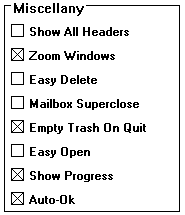
If Show All Headers is on, Eudora displays the complete header, including routing information, with the me
ssage. If this option is off, Eudora withholds this additional information.If Zoom Windows is on, new mailbox and message windows automatically open to their "zoomed" size. The zoomed size is compute
d on a window-by-window basis. Zoomed size is just long enough to display all of the message (but no longer than the main window), and as wide as the Message Window Width: setting in the Configuration... dialog. Composition windows zoom to the he
ight specified by the Message Lines: setting in the Configuration... dialog.If Easy Delete is on, Eudora does not alert you when you are deleting messages you haven't read or transferring queued
messages out of the Out mailbox.If Mailbox Superclose is on, closing a mailbox window closes all open messages from that mailbox.If Emp
ty Trash on Quit is on, Eudora empties the Trash mailbox whenever you quit the application. If this option is off, Eudora only empties the Trash when you select Empty Trash from the Special menu.Note: If you want to remove some messages from the tr
ash but don't want to empty it entirely, highlight the summaries you want to delete and select Delete from the Message menu. The selected messages are deleted.
If Easy Open is on, deletin
g or transferring an open message opens the next message in the mailbox, but only if it is unread.If Show Progress is on, Eudora displays a Progress window at the top of your screen to advise you of pr
ogress made when making a network connection, transferring mail or some other long operation.Many network problems are temporary. When a problem occurs while Eudora is transferring or checking your mail, you ar
e notified in the same way you would be if you were receiving new mail (see the "New mail Notification: Options" section). If Auto-Ok is on, these notifications automatically go away after a couple of minutes. This allows Eudora to try the communication a
gain. This setting is most useful if you have a non-zero value for the Check for mail every ? minute(s) setting in the Configuration... dialog.
Contents Page, Previous Chapter, Next Chapter