Contents Page, Previous Chapter, Next Ch
apter
In order for Eudora to work correctly, the program must be configured by providing it with some basic though important information. To enter this information, select Configuration...
from the Special menu. The Configuration... dialog is displayed.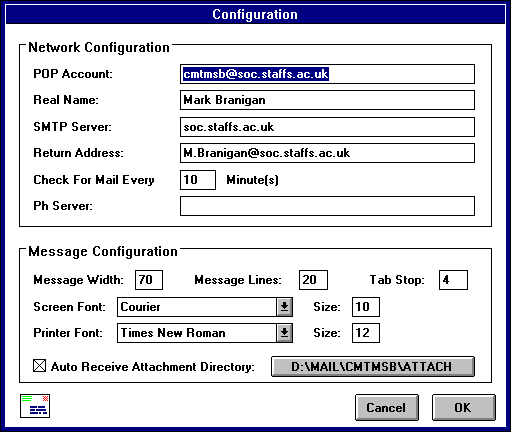
The Configuration... dialog is divided into two segments: Network Configuration and Message Configuration
Each of the fields in the Network Configuration segment of the Configuration... dialog is described below. The default settings are listed in brackets after the name of each Configuration setting.To receive mail with Eudora, you must have an account on a computer that runs a POP3 server. This is the account to which your E-mail messages are delivered before they are transferred to the Eudora program on your PC. Enter
your login name for this account, followed by an @ sign (that means "at") and the domain name of the computer.For example, if your login name for your POP account is carolyn, and the domain name of the computer is uxh.cso.uiuc.edu, type carolyn@uxh.cso.uiuc.edu in this field.
Enter your real name here. It is placed in parentheses after your return address in your outgoing mail. It is also disp
layed in the Sender column of incoming message summaries.To send mail, a computer with an SMTP (Simple Mail Transfer Protocol) server program is necessary. Y
ou need not have a login on this computer, but you must have access to it through your network. If the computer on which you have your POP account is also an SMTP server, leave this field blank. Otherwise, specify the name of the computer which you want
to use as your SMTP server.Normally, Eudora uses your POP Account as your return address. If you wish to use a return address other than your POP account, enter it here.Important: If
you do type an address in this field, first test the address to be sure that mail sent to it is indeed delivered to you. If you use an invalid return address, no one can reply to your mail.
If you enter a number in this field, Eudora checks your POP server for new mail at regular intervals and transfers any mail addressed to you to your PC. The number you enter specifies the number of minutes between checks of the POP server.
It's a good idea to set this at no less than 60 minutes. Checking mail more frequently puts an unnecessary drain on your POP server. This option only works when Eudora is running. Leaving this field empty disables automatic checking.Enter the host name of your Ph name server here.Note: For more information on Ph servers, see Appendix A.
Each of these fields in the message Configur
ation segment of the Configuration... dialog is described below. The default setting are listed in brackets after the name of each field.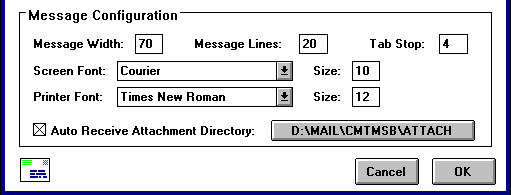
This field specifies the wid
th of new and received message windows (in characters). If you leave this field blank, the default value is 80. This setting has no effect on what your mail looks like when it is sent. When mail is sent, Eudora wraps at or before 76 column
s.Note: If you use a proportional font, Eudora sets the window width based on the average width of the characters in the font
This field specifies the height of new and received message windo
ws (in lines). If you leave this field blank, the default value is 20.Note: If the Zoom Windows option in the Switches... dialog is turned on, received messages window heights are automatically adjusted to the length of the message te
xt.
This field specifies the number of spaces between tab stops.This combo box allows you to select a screen font to be used for displaying t
he text of your Eudora messages and mailbox windows. Type the size (in points) of the font you are using in the Size field.This combo box allows you to select a font to be used when you
print messages using the Print... command. Type the size (in points) of the font you are using in the Size field.If this option is checked, Eudora automatically plac
es file attachments that come with messages into the specified directory. To change the setting, single-click on the application name button (the default is blank). A dialog is displayed allowing you to select the directory (see also the "Saving Attachm
ents Automatically" section).
Contents Page, Previous Chapter, Next Chapter