Contents Page,
Previous Chapter, Next
Chapter
Eudora incorporates a Find function that searches for specific text within a single message, multiple messages, or even multiple mailboxes. To display the Find submenu of command
s, select Find from the Edit menu.
To search for text within a single message, open the message and make sure it is current. Then, select Find... from the Edit menu and select the Find command from the submenu. The Find dialog is then displayed, with the blinking insertion point located in the text field.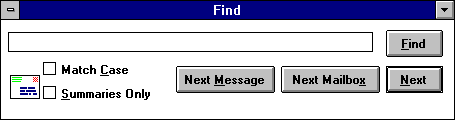
Type the text you want to find in the text field
. When finished entering the desired text, click the Find button.
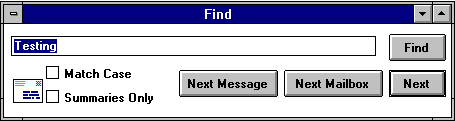
Starting at the beginning of the open message, Eudora searches the current message for the specified text. If no match is found, the not found alert is
displayed.

If the search is successful, the message is scrolled to the first point where the match is found and the matching text is highlighted.
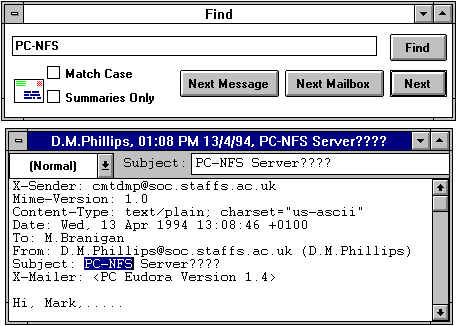
To continue searching in the same message for the
next occurrence of the text, click the Find button in the Find dialog or select the Find Again command from the Find submenu. These commands are equivalent and limit the search to the same message. Repeating these commands cycles th
rough the matches in the open message only.
The Next, Next Message, and Next Mailbox commands are located in the Find submenu (under the Edit menu
) or as buttons in the Find dialog.The Next button (or Next command) allows you to search for the next match of the specified text until it is found either in the same message or among all messages in the current mai
lbox.Note: The Next command initiated in an open mailbox (even with message[s] selected) searches for the specified text among all messages contained in that mailbox. The search begins with the first selected message.
The Next Message button (or Next Message command) begins the search at the message after the current message. Eudora continues to search until it finds a matching character string, even if it has to open more than one message or a new
mailbox.The Next Mailbox button (or Next Mailbox command) begins the search for the specified text in the mailbox following the current mailbox. The search is conducted among all messages in that mailbox an
d any subsequent mailboxes, including the In, Out, and Trash mailboxes.Note: Mailboxes are searched in the order they are listed under the Mailbox menu until the current mailbox is reached.
Normally, Eudora ignores capitalization when searching. If you want Eudora to consider capitalization when searching, check the Match Case option in the Find dialog. When this option is checked, Eudora searches for exact matches of charact
er strings, including any capitalization.If you know the text you are searching for is included in a message summary, check the Summaries Only option in the Find dialog. When you click the Find button
, Eudora searches for the text only in the Sender/Recipient and Subject fields of message summaries as they appear in mailbox windows. Eudora searches much faster when this option is checked.If you don't want to actually type the text in the Find dialog (for example, the text is very long or complex), highlight it in an existing message, and then select Enter Selection from the Find submenu. This automatically inserts th
e selected text at the insertion point in the Find dialog. Then, select the Find command from the Find submenu to start the search.If you want to stop Eudora from continuing a search, press the [ESC]
key.
Contents Page,
Previous Chapter, Next Chapter