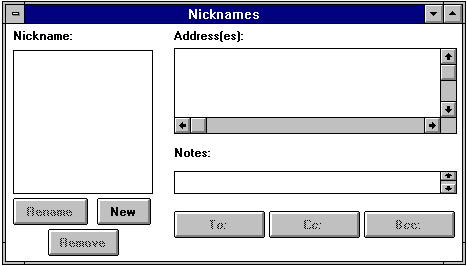
To create, edit, or remove a nickname, select Nicknames... from the Window menu. The Nicknames window is then displayed. This window is divided into three main fields. The Nickname: field lists all your nicknames; the Address(es): field displays a selected nickname's expansion (the addresses that the nickname represents); and the Notes: field contains your pr ivate notes on a nickname.
Type the name of the new nickname. If you want this nickname to show up on the Quick Recipient List under the Message menu (see the "Using the Quick Recipient List" section), click on the Put it on the recipient list opt ion. Then, click OK.
The new nickname is displayed in the Nicknames: field of the Nicknames window, and the insertion point is placed in the Address(es): field. Type the complete E-mail address of the person to be represented by t he nickname.

If you'd like to add someone's proper name to the address that you specify, just put it in parentheses after the E-mail address.
Note: Be aware that the proper name is put in the To: field of mail mess ages along with the full address.
You may also type a series of many E-mail addresses (and even other nicknames), separated by commas or returns ([ENTER] key), in the Address(es) section. These multiple addresses are represented by the single enter ed nickname. In this way, a nickname can be used for a group mailing list.
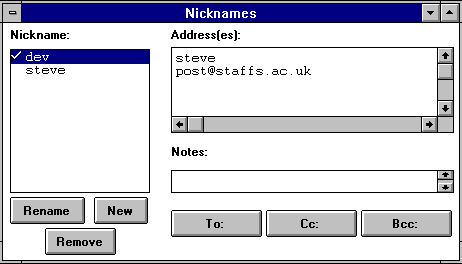
Note: The Nicknames window is the only place where it is permissible to use the [ENTER] key to separate addresses. Everywhere else, you mus t use commas.
The Notes: field can be used to enter any text you'd like to associate with a nickname, such as the addressee's company, title, or phone number.
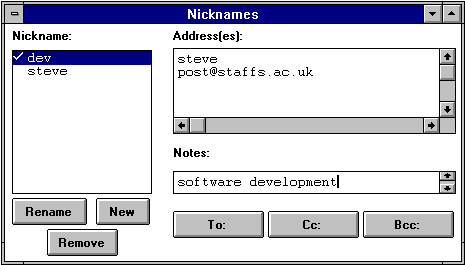
Note: The contents of the Notes field is not put in mail you send.
One nickname can point to another nickname, which can point to still another, and so on; eventually, however, the nickname must end in a real address or group of addresses. For example, dev contains steve in its expans ion, and steve is itself a nickname for cmtsed@math.luto.ac.uk.

Once you've finished typing addresses and notes, you can click the New button again to make another nickname.
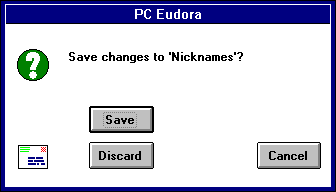
When finished making additions or ch anges, select Save from the File menu to save the changes. If you close the Nicknames window without saving the changes, a dialog is displayed asking whether the additions/changes you just made should be saved or discarded.
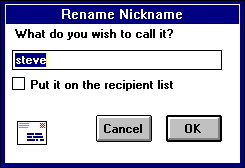
To change a nickname's corresponding E-mail address(es) and notes, click once on the desired nickname to select it. The addresses and notes associated with the nickname are displayed in the Address(es): and Notes: fields, an d may be directly edited.

To remove the nickname, click once on the desired nickname to select it. Click the Remove button.
When finished editing or making deletions, select Save from the File menu to s ave the changes. If you close the Nicknames window without saving the changes, a dialog is displayed asking whether the changes/deletions you just made should be saved or discarded.
From the Nicknames window itself, use [CTRL] + click to select several different nicknames, and then choose Make Nickname... from the Special menu. The new nickname dialog is displayed prompting you for the name of the new nickname. Once you have entered the name, click OK to create the new nickname with the selected nicknames in the Nicknames window as its addressees. This is an e asy way to make a group nickname out of existing nicknames.
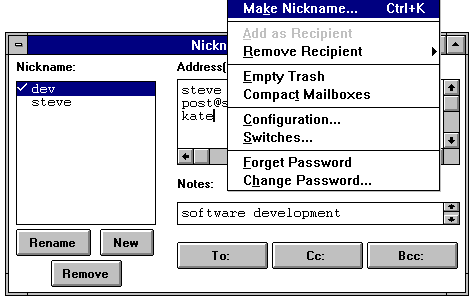
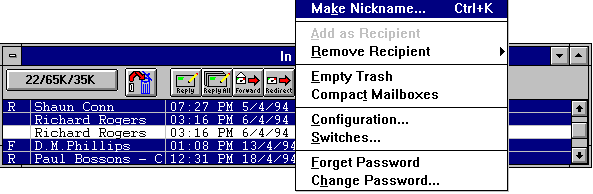
Alternately, you can make a nickname out of the address list of a current message. Open a mailbox and single-click on the desired message to make it current. Select Make Nickname... from the Special menu. The new nickname dialog is displayed prompting you for the name of the new nickname. Once you have entered the name, click OK. If multiple messages are current (i.e., you have several message summaries selected in a mailbox window), addresses are taken from each message and all are put in the new nickname's expansion.
Note: When an incoming message is current, Make Nickname... pretends to do a Reply to the current message, and then takes all the recipients from the reply message and uses them in the nickname expansion. This means that Make Nickname... acts just like Reply in regard to the Include Self and Reply All options in the Switches... dia log. That is, if the Reply All option in the Switches... dialog is turned on (or you hold down the [SHIFT] key), the nickname is made for all of the recipients of the messages plus the sender, not just the sender. Similarly, if the Include Sel f option in the Switches... dialog is turned off, your address is not included in the new nickname's expansion.
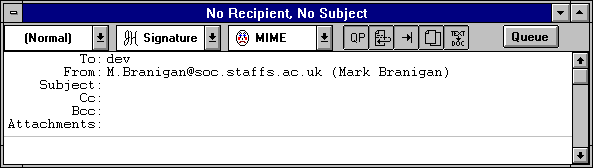
A new composition window is displayed with the selected nickname(s) inserted into the To: field. Use th e To:, Cc: and Bcc: buttons to insert additional nicknames into the corresponding fields.
The Nicknames window can also be used to address existing. Make sure the desired message is current (topmost), then open the Nicknames window and use the To:, Cc: and Bcc: buttons to address the message.
However, you may have nicknames to which you often send mail, and it makes sense to add these nicknames to the Quick Recipient list. This is easily done from the Nicknames window. Double click on a nickname to add it to or remove from Quick Re cipient list. A check mark next to the nickname indicates that it is on the list.
The Quick Recipient list is discussed further in the "Using the Quick Recipient List" section. If you rename or remove a nickname that is also on the Quick Recipient list , the name on the Quick Recipient list is also changed or removed.