Contents Page, Previous Chapter, Next Ch
apter
This section describes the Reply, Forward, and Redirect commands found in the Message menu. These commands are differen
t from the Reply To, Forward To, and Redirect To commands found in the same menu. This latter set of commands is used with the Quick Recipient list (see the "Using the Quick Recipient List" section for descriptions of these co
mmands).
To reply to a current message, select Reply from the Message menu. A new message window is displayed, with the original sender's address automatically placed in the To: fie
ld of the header. The original sender's text is also automatically included at the beginning of the reply message (prefixed by ">" at the beginning of each line). This text may be edited or deleted as needed. Additional text can be added to the reply j
ust as to any outgoing message. The reply can then be saved for further changes, or simply sent.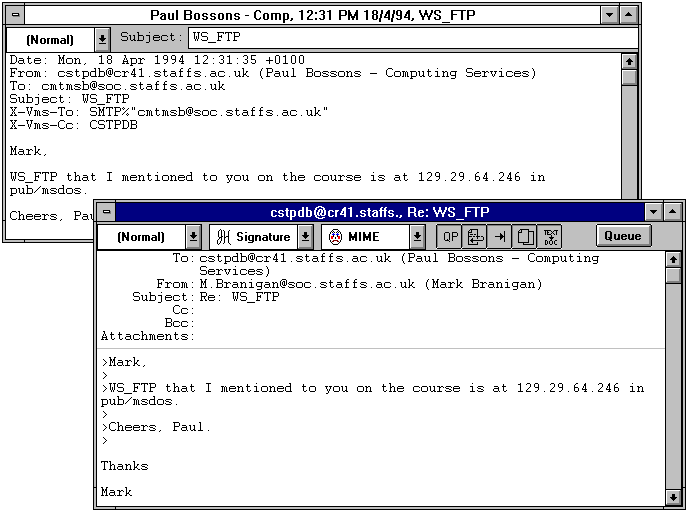
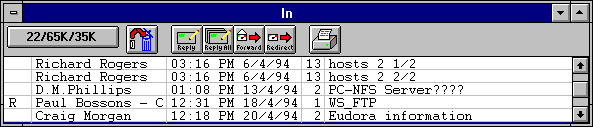
An incoming message for which the Reply command has been used is identified by an R in its message summary.
There are some variations of the Reply command.Reply all: If you hold down the [SHIFT] key when selecting Reply from the Message menu, the reply message is sent to the sender
of the original message and to everyone who received it. This is useful for carrying on group discussions electronically. However, if the Reply All option in the Switches... dialog is turned on, reply all is the default, and you must hold down t
he [SHIFT] key to reply only to the message sender.
Don't include self: If the Include Self option in the Switches... dialog is turned off, Eudora does not include your return address in the reply all (see the "Include Self" section for in
formation on how Eudora determines who you are).
You may want to relay, or forward, messages to other users. To do this, select Forward from the Message menu for any current received messag
e. This transfers the header and the body of the received message, denoted with ">" markers at the beginning of each line, to the body of a new message window. There, you must fill in the empty To: field in the message header with the address of
the person to whom you want the message forwarded. The existing text may be edited and more text may be added to the message. A forwarded message is identified (in the From: field) as coming from you.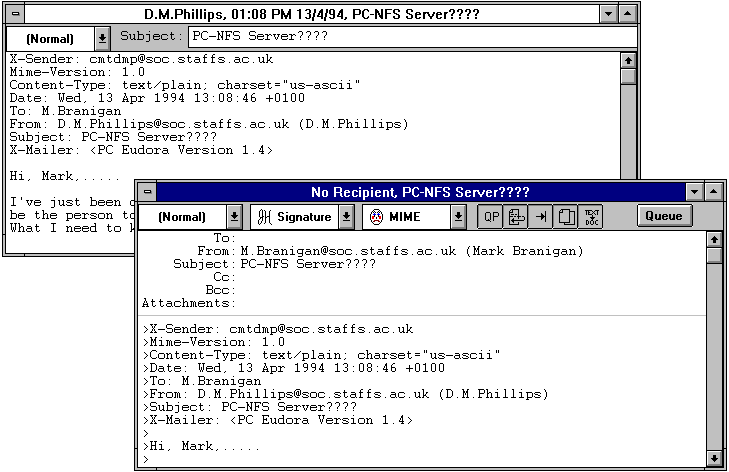
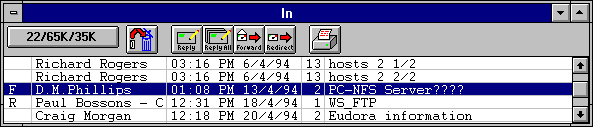
An incoming mess
age for which the Forward command has been used is identified by an F in its message summary.
Eudora provides a way to redirect messages that you decide were more approp
riately sent to someone besides yourself. To do this, select Redirect from the Message menu for any current incoming message. A new message window is displayed, and you should type in the appropriate recipient in the To: field of th
e header. The address in the From: field is that of the person who originally sent the message, by way of your address. In addition, there are no ">" markers at the beginning of each line of the original text. However, you may edit or add more t
ext to the message.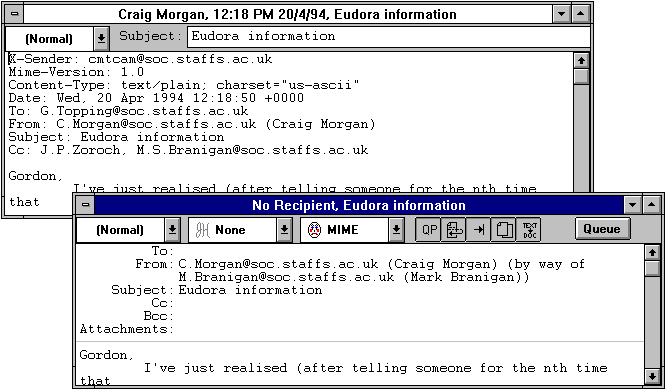
An incoming message for which the Redirect command has been used is identified by a D in its message summary.
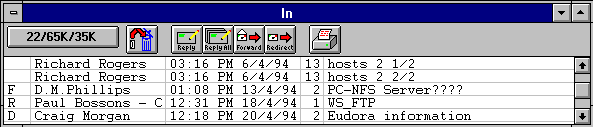
When you
use Redirect, your signature file (described in the "Creating a Signature" section) is not added to the message when it is sent, unless the message was originally created by you. Eudora considers the message to be originally from you if the address in t
he From: field exactly matches your return address setting (or, if you have not entered a return address in the Configuration dialog, your POP account setting).If you fin
d yourself sending the same message over and over again to different people, you can keep a "canned" copy of that message and send it easily using the Redirect command. To do this, first compose a new message as you normally would, but leave the To: field blank. Save the message, and, if desired, use the Transfer menu to move it from the Out mailbox into another mailbox (named "Canned Messages", perhaps). When you want to send the message to someone, locate the message and highlight it in the ma
ilbox window (do not open it). Then select Redirect from the Messages menu, fill in the To: field, and send the message.
Contents Page, Previous Chapter, Next Chapter